User Guide
ClientHub is a desktop app for Tech-savvy Independent Financial Advisors who have more than 50 clients that are mainly Singaporean to better manage their clients. Our product provides financial advisors with a streamlined tool to manage client details, optimised for use via a Command Line Interface (CLI) while still having the benefits of a Graphical User Interface (GUI).
This product makes the lives of financial advisors easier by offering easier access to relevant information for their clients improving their efficiency. If you can type fast, ClientHub can get your client management tasks done faster than traditional GUI apps.
- Quick start
-
Features
- Parameter Specifications
- Viewing help :
help - Adding a client:
add - Editing a client:
edit - Deleting a client:
delete -
Locating clients by key information:
find - Reminder Features
- Viewing a client:
view - Sorting by name :
sort - Listing all persons :
list - Clearing all entries :
clear - Exiting the program :
exit
- Additional Features
- FAQ
- Known issues
- Command summary
Quick start
-
Ensure you have Java
17or above installed in your Computer. -
Download the latest
.jarfile from here. -
Copy the file to the folder you want to use as the home folder for your ClientHub.
Example:
For Mac
- If you have downloaded the jar file into a folder in your
Downloads - Open Terminal
- Type
cd Downloads/[FolderName]and press Enter - Type
java -jar clienthub.jarand press Enter
For Windows
- If you have downloaded the jar file into a folder in your
Downloads - Open PowerShell
- Type
cd Downloads/[FolderName]and press Enter -
Type
java -jar clienthub.jarand press EnterA GUI similar to the one below should appear in a few seconds. Note how the app contains some sample data.
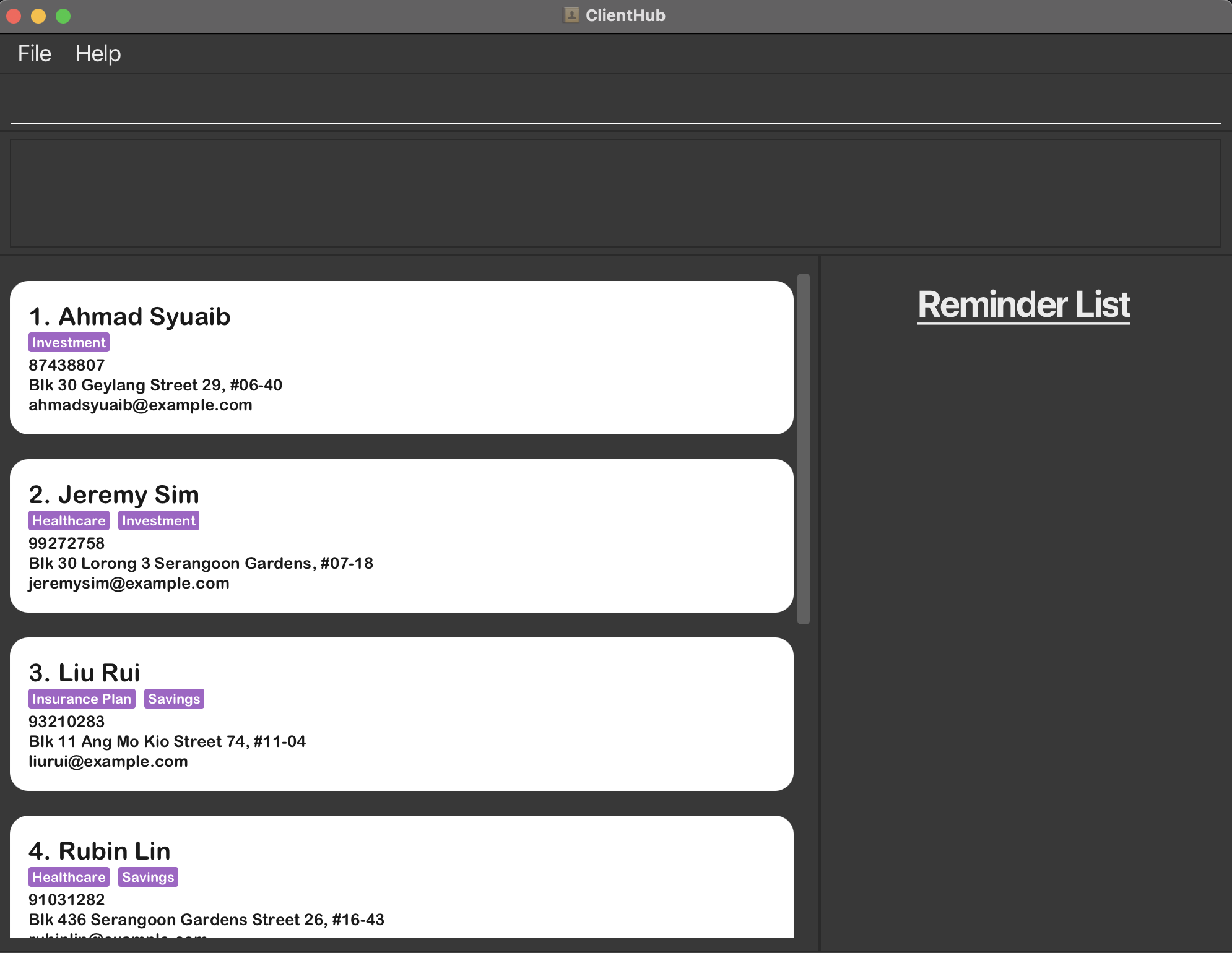
-
Type the command in the command box and press Enter to execute it. e.g. typing
helpand pressing Enter will open the help window.
Some example commands you can try:-
list: Lists all clients. -
add n/John Doe p/98765432 e/johnd@example.com a/John street, block 123, #01-01 d/likes ramen c/Investment: Adds a client namedJohn Doeto the Client Hub. -
delete John Doe: Deletes John Doe from the Client Hub. -
clear: Deletes all clients. -
exit: Exits the app.
-
- Refer to the Features below for details of each command.
Features
 Notes about the command format:
-
Words in
UPPER_CASEare the parameters to be supplied by the user.
e.g. inadd n/NAME,NAMEis a parameter which can be used asadd n/John Doe. -
Items in square brackets are optional.
e.gn/NAME [c/CLIENT_TYPE]can be used asn/John Doe c/Plan Aor asn/John Doe. -
Items that are not in square brackets are compulsory and must not be empty.
e.g.n/NAMEmust be used asn/John Doe. -
Items with
… after them can be used multiple times.
e.g.[c/CLIENT_TYPE]…can be used asc/Plan A,c/Plan A c/Plan Betc. (i.e. 0 or more times, since it is a optional field)
e.g.c/CLIENT_TYPE…can be used asc/Plan A,c/Plan A c/Plan Betc. (i.e. 1 or more times, since it is compulsory) -
Parameters can be in any order.
e.g. if the command specifiesn/NAME p/PHONE_NUMBER,p/PHONE_NUMBER n/NAMEis also acceptable. - Add
$after the input name to indicate exact name.
- This is useful when a client’s name is a prefix of another client’s name.
- Order of name inputs matter when using
$ - Name written before
$must be EXACT name of the client.
e.g.
delete John Doe$will delete the client with the nameJohn Doe.
e.g. If there are two client namedDavid LiandDavid Lim, typingdelete David Li$will delete the client with the nameDavid Li. -
Extraneous parameters for commands that do not take in parameters (such as
help,list,exit,sortandclear) will be ignored.
e.g. if the command specifieshelp 123, it will be interpreted ashelp. - If you are using a PDF version of this document, be careful when copying and pasting commands that span multiple lines as space characters surrounding line-breaks may be omitted when copied over to the application.
Parameter Specifications
- Specific constraints for each parameter are specified in the table below.
- Commands that use any of these parameters will have to adhere to the constraints specified in the table.
| Command | Constraints | Examples |
|---|---|---|
NAME |
- Must start with a letter - Must contain more than 1 character - First character: only letters - Last character: only letters or parentheses - Middle characters: letters, parentheses, or slashes - Is case-insensitive |
Valid: John Doe, John (NUS), John S/O Bob Invalid: A, John 123, !John Doe
|
PHONE_NUMBER |
- Only numbers - Exactly 8 digits |
Valid: 12345678 Invalid: 123456789, abc
|
EMAIL |
- Format: local-part@domain - Local-part: alphanumeric and (+_.-) but cannot start/end with special characters - Domain: ends with at least 2 characters; each label is alphanumeric, may contain hyphens but cannot start/end with them |
Valid: example@mail.com, my-example@mail.com Invalid: @mail.com, example@c, example@.com
|
ADDRESS |
- Allowed characters: letters, numbers, ,#-():;
|
Valid: John street, block 123, #01-01 Invalid: $Block 69
|
DESCRIPTION |
- Limited to 500 characters (including whitespace) |
Valid: likes bubble tea
|
CLIENT_TYPE |
- Alphanumeric only - Max length: 30 characters - No duplicates; duplicate entries are combined - Is case sensitive |
Valid: Plan A Invalid: Investment #1
|
DATETIME |
- Format: yyyy-MM-dd HH:mm in 24-hour format |
Valid: 2022-10-10 12:00 Invalid: 2022-10-10 12:00 pm
|
REMINDER_DESCRIPTION |
- Max length: 300 characters |
Valid: Meeting with John at 12pm
|
INDEX |
- Must be a positive integer |
Valid: 1, 2, 3 Invalid: 0, -1
|
Note
-
NAMEis case-insensitive. The first letter of every word will be automatically converted to capital letter and the rest to small letters. This is to ensure that 2 names with the same letters but different cases are not considered as different names.e.g.
john doeandJohn Doeare considered the same name and cannot be added as 2 different clients. -
CLIENT_TYPEis case-sensitive. This is to give greater flexibility to differentiate between different client types that are similar but have different cases.e.g.
Healthis different fromhEaLtHwhileInvestmentandInvestmentare the same and are considered duplicates -
“Do not exist” inputs for
DATETIME:- If specified datetime is valid (i.e. dd = 01 to 31) but does not exist in that month, the reminder will be updated to the NEAREST VALID
DATETIME- E.g. If
DateTimeis made to be2024-02-30 16:00which does not exist, the reminder will be added with dt:2024-02-29 16:00
- E.g. If
- If specified datetime is valid (i.e. dd = 01 to 31) but does not exist in that month, the reminder will be updated to the NEAREST VALID
Viewing help : help
Shows a help window with a list of commands and their formats with a link to the User Guide.
Format: help
Adding a client: add
Adds a client to Client Hub.
Format: add n/NAME p/PHONE_NUMBER e/EMAIL a/ADDRESS d/DESCRIPTION c/CLIENT_TYPE…
- Clients cannot have the same name.
- If a client with the same name already exists, an error will be thrown.
- Example of an error:
add n/John Doe p/98765432...if a John Doe already exists in ClientHub - To add a client with the same name, the name must be differentiated through means such as
(NUS)or(S/O Bob).
- Clients can have the same phone number, email, address, description, and client type.
Examples:
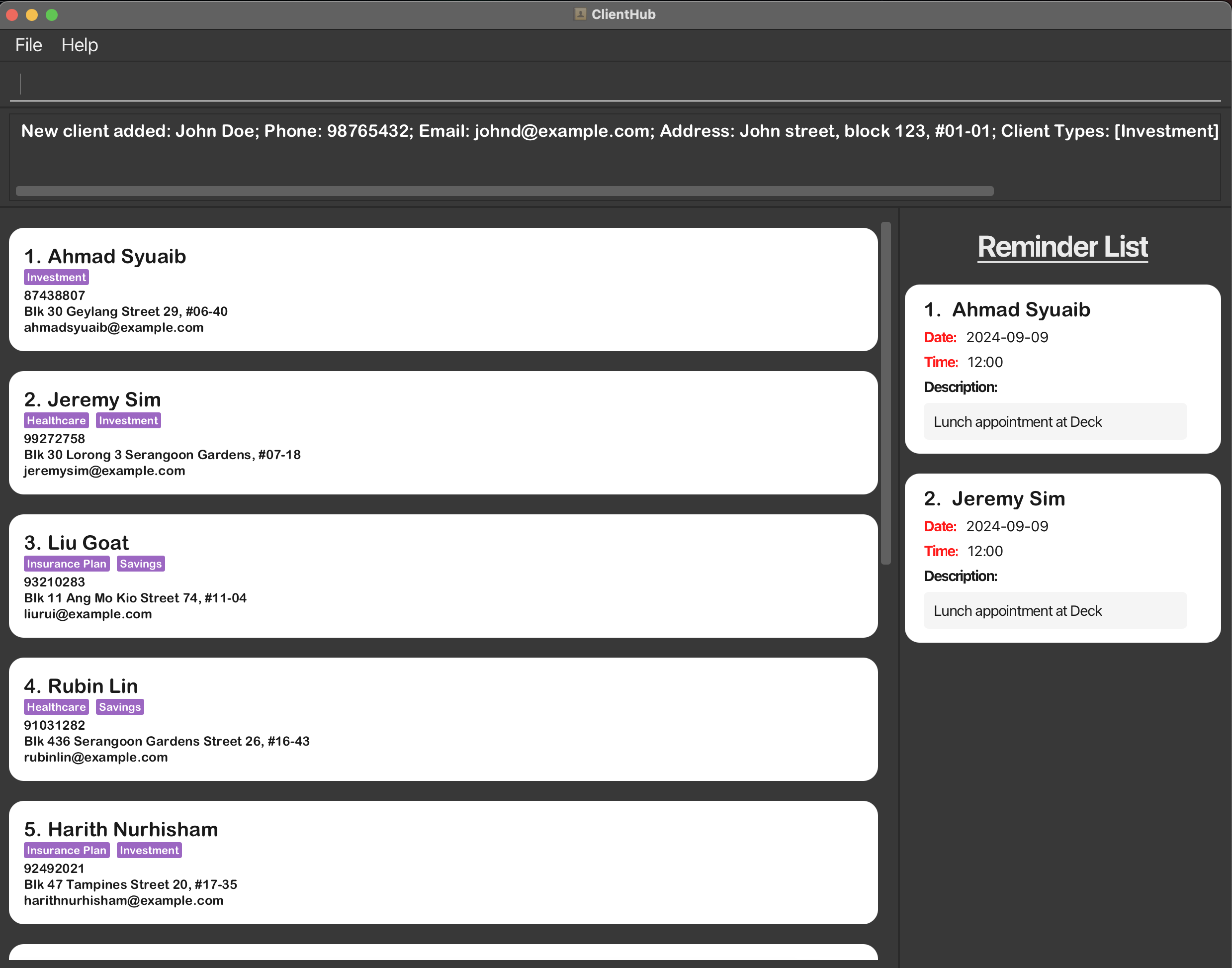
add n/John Doe p/98765432 e/johnd@example.com a/John street, block 123, #01-01 d/likes bubble tea c/Investmentadd n/Betsy Crowe p/12345678 e/betsycrowe@example.com a/Yishun Town d/Loves travelling c/Investment c/Healthcare
Result for add n/John Doe p/98765432 e/johnd@example.com a/John street, block 123, #01-01 d/likes bubble tea c/Investment:
Editing a client: edit
Edits an existing client in Client Hub.
Format: edit INDEX [n/NAME] [p/PHONE_NUMBER] [e/EMAIL] [a/ADDRESS] [d/DESCRIPTION] [c/CLIENT_TYPE]…
- Edits the client at the specified
INDEX. - At least one of the optional fields must be provided.
- At most 1 of each field can be edited at a time. (excluding
CLIENT_TYPE) - Multiple
CLIENT_TYPEcan be inputted at once.
- At most 1 of each field can be edited at a time. (excluding
- Existing values will be updated to the input values.
- When editing
CLIENT_TYPE, the existingCLIENT_TYPEof the person will be removed i.e adding ofCLIENT_TYPEis not cumulative. - When editing
NAME, the client with the associatedNAMEshould have no reminders. - Edited
Namemust be unique. (e.g. no 2 clients can have the same name).
Examples:
-
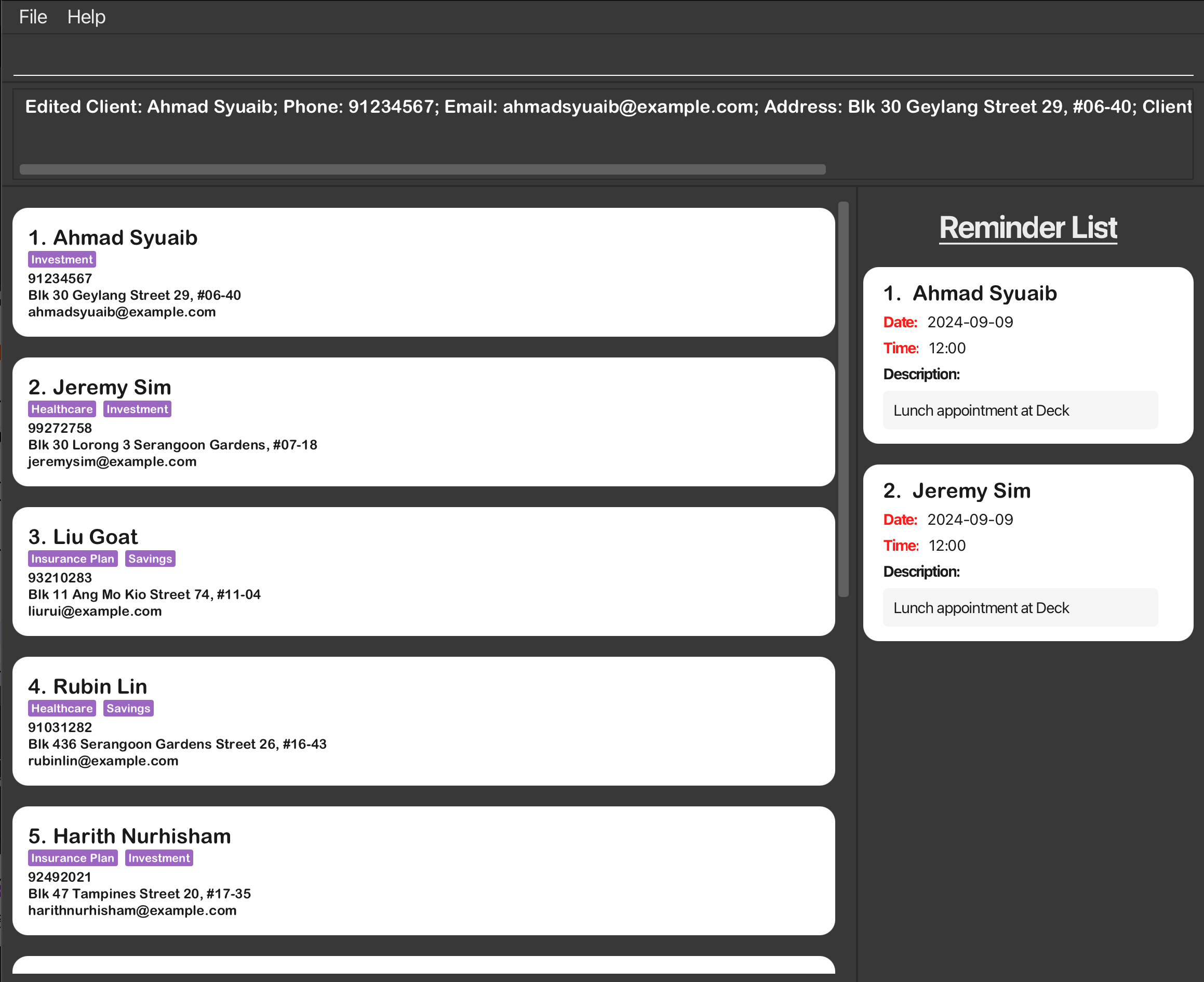
edit 1 p/91234567 e/johndoe@example.comEdits the phone number and email address of the 1st person to be91234567andjohndoe@example.comrespectively. -
edit 2 n/Betsy Crower c/investment c/healthcareEdits the name of the 2nd person to beBetsy Crowerand changes theCLIENT_TYPEs toinvestmentandhealthcare.
result for edit 1 p/91234567:
Deleting a client: delete
Deletes the specified person from ClientHub.
Format: delete NAME or d NAME or delete NAME$
- Deletes the client with name that begins with specified
NAMEkeyword. -
$is used to indicate specific name to delete. - When the client with the specified
NAMEhave atleast 1 reminder it cannot be deleted.
Examples:
-
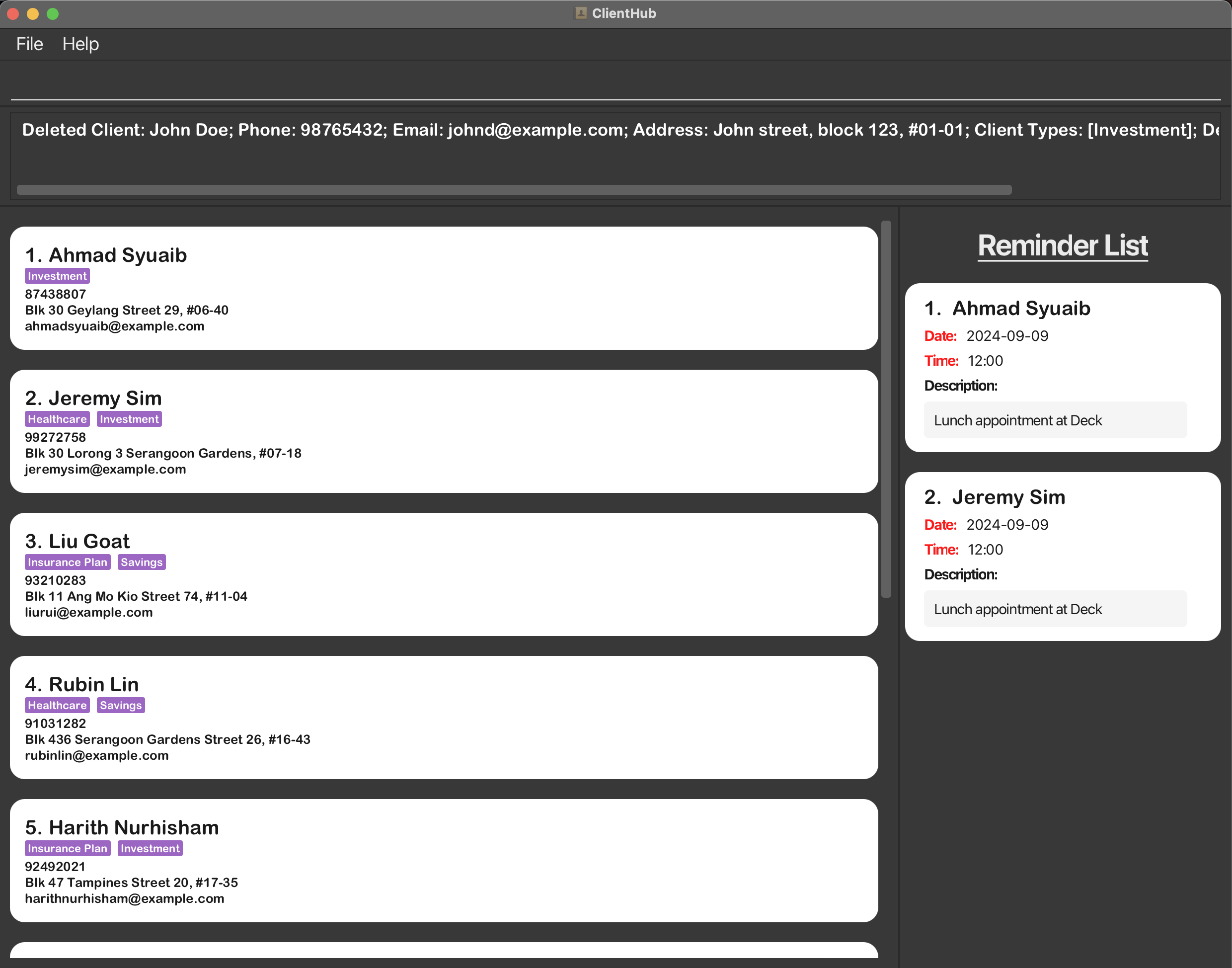
delete John Doedeletes the person namedJohn Doe. -
delete John Doe$deletes the person namedJohn Doeand notJohn Doey. - If there are 2 clients
David LiandDavid Lim, typingdelete David Liwill throw an error, telling the user to specify the name further.
Result for delete John Doe:
Locating clients by key information: find
Finds clients by NAME, PHONE_NUMBER, ADDRESS or CLIENT_TYPE.
Locating by NAME
Format: find n/NAME or fn NAME or find NAME$
-
$is used to indicate exact name to find - The search is case-insensitive. e.g
hanswill matchHans - The order of the keywords does not matter. e.g.
Hans Bowill matchBo Hans - Prefix of words will be matched e.g.
Ha Bwill matchHans Bo - Clients matching all keyword prefix will be returned (i.e.
ANDsearch). e.g.Hans Bowill returnHans Bobut notHans Gruber,Bo Yang
Examples:
-
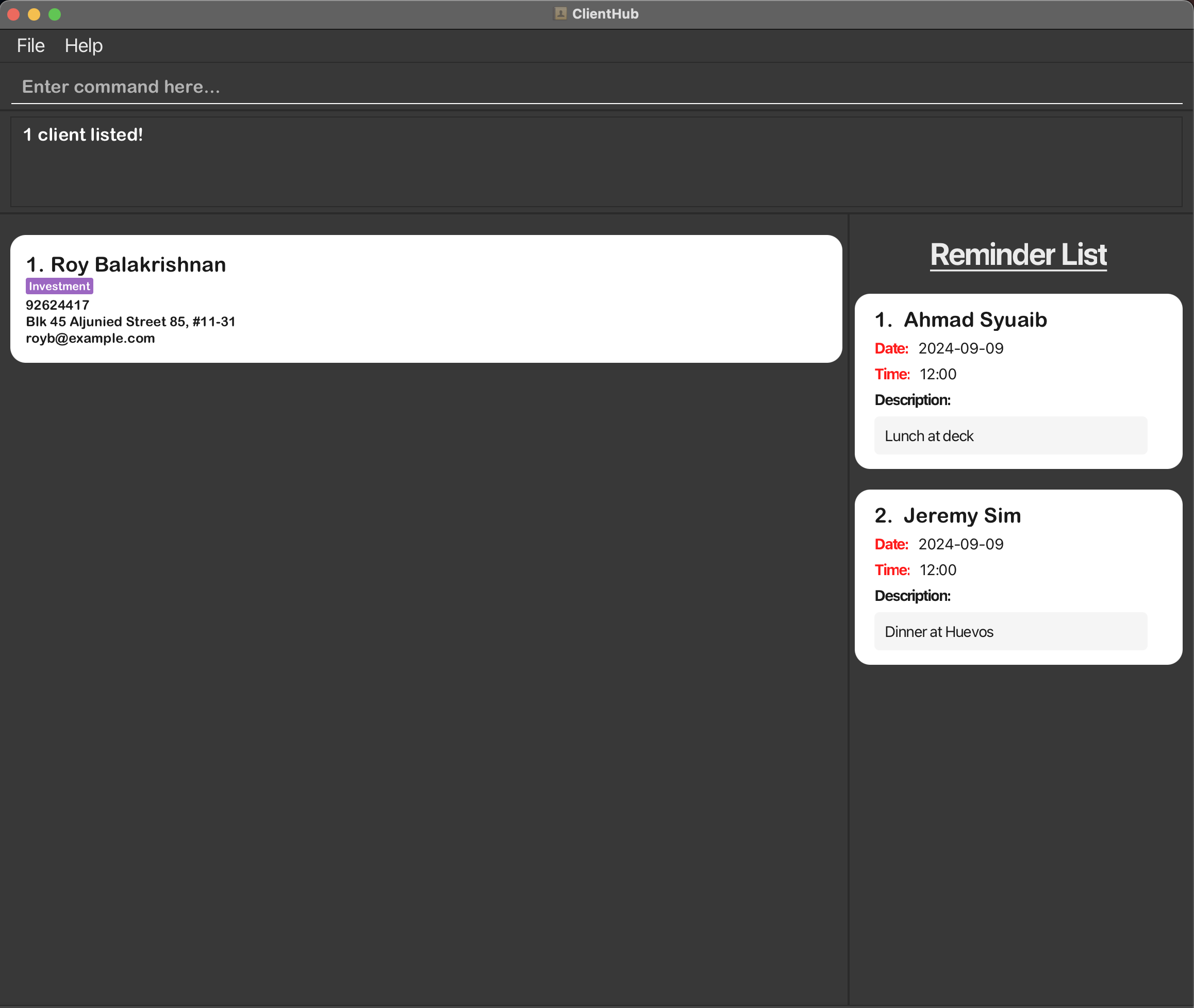
find n/JohnreturnsJohnandJohn Doe -
find n/alex yeoreturnsAlex Yeoh -
fn JohnreturnsJohn,John Doe,Doe John,Doe John Eng -
fn Ale YeoreturnsAlex Yeoh -
fn Yeoh AlexreturnsAlex Yeoh -
fn aLex yEOhreturnsAlex Yeoh
Result for find n/roy:
Locating by PHONE_NUMBER
Format: find p/PHONE_NUMBER or fp PHONE_NUMBER
- Only numbers that begin with keyword will be matched e.g.
8765432will not match98765432
Examples:
-
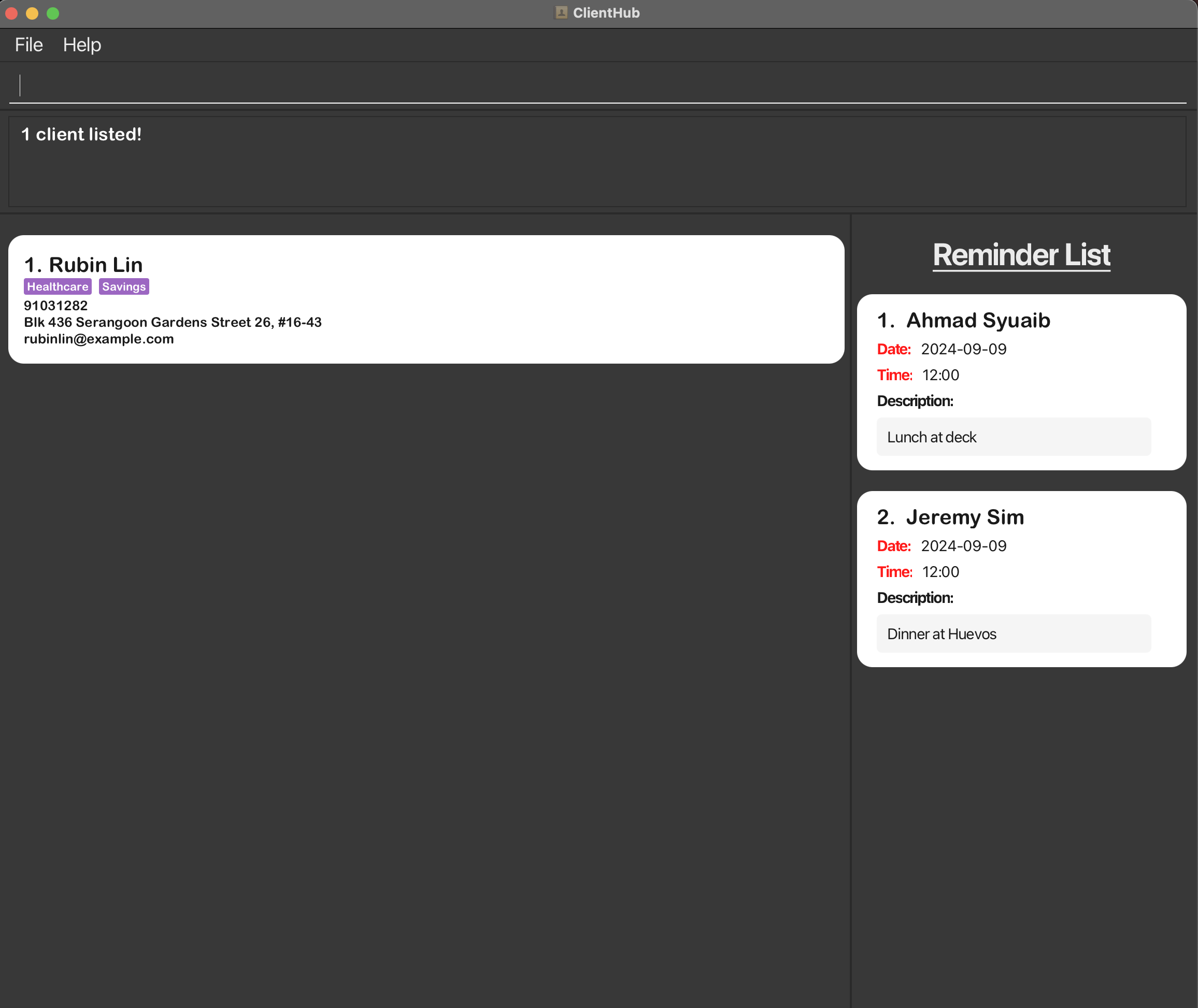
find p/9103returns91031282 -
fp 8433returns84334567
Result for find p/9103:
Locating by ADDRESS
Format: find a/ADDRESS or fa ADDRESS
- The search is case-insensitive. e.g
tampineswill matchTampines - Clients with address with any matching substring to the keyword will be returned.
Examples:
-
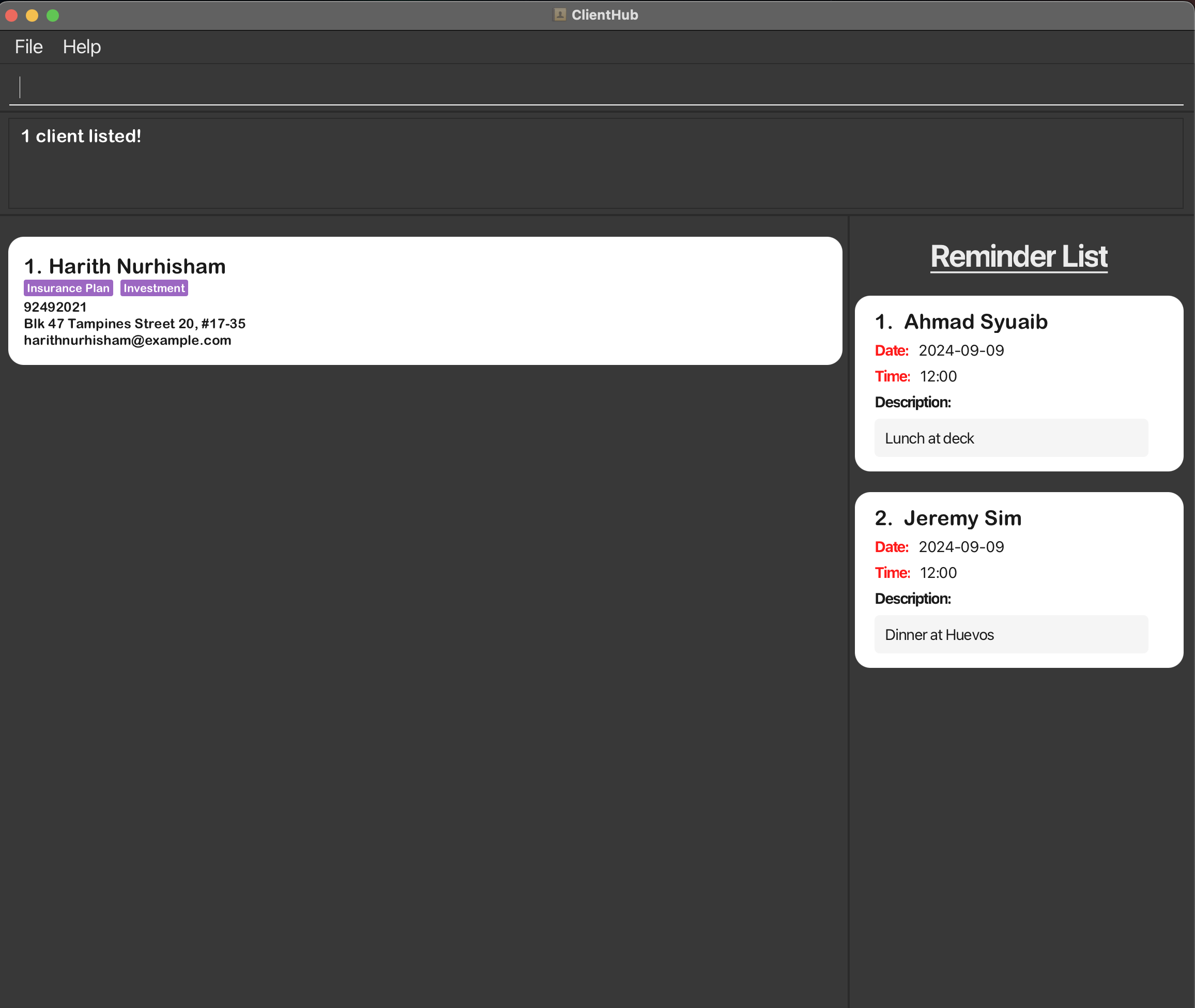
find a/Blk 47returnsBlk 47 Tampines Street 20 -
fa Blk 47returnsBlk 47 Tampines Street 20
Result for find a/tampines:
Locating by CLIENT_TYPE
Format: find c/CLIENT_TYPE… or fc CLIENT_TYPE…
-
The search is case-insensitive. e.g
investmentwill matchInvestment -
Single
CLIENT_TYPEsearch performs a substring search.- The clients returned must have at least 1
CLIENT_TYPEthat contains the input. - e.g.
find c/Investmentwill return clients with at least 1CLIENT_TYPEthat containsInvestment.
- The clients returned must have at least 1
-
Multiple
CLIENT_TYPEsearch performs a prefix search.- For every single input, the returned client must have at least 1
CLIENT_TYPEthat starts with the input. - e.g.
find c/Invest Healthreturns clients with bothInvestmentandHealthcarewhich areCLIENT_TYPEs that start withInvestandHealth.
- For every single input, the returned client must have at least 1
- Duplicate
CLIENT_TYPEwill be combined into 1 (No way to have duplicate client types showing)
Examples:
-
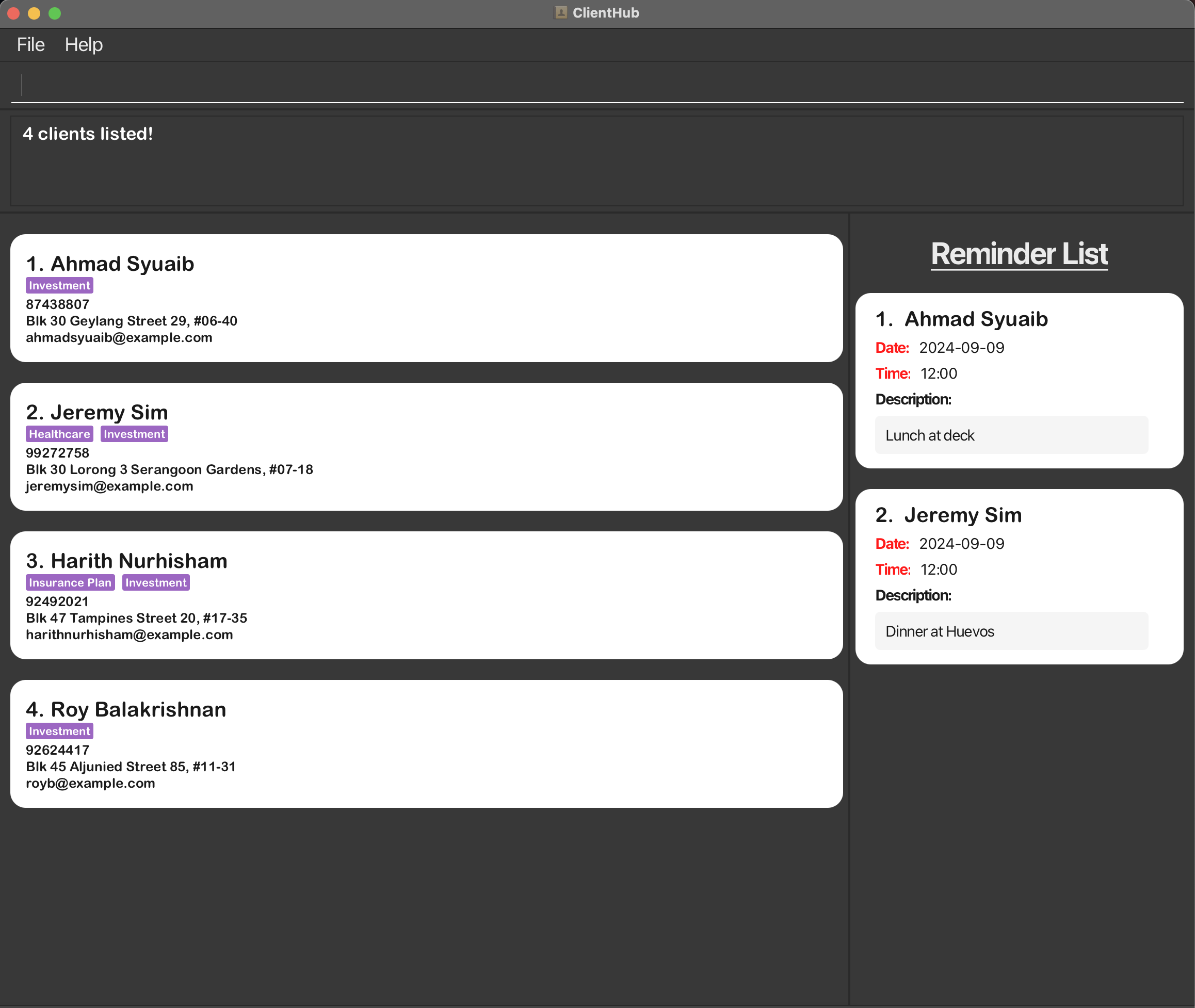
find c/Investmentreturns every client that has aCLIENT_TYPEbeginning withInvestment -
find c/Investreturns every client that hasCLIENT_TYPEbeginning withInvest -
find c/Investment Healthcarereturns every client that hasCLIENT_TYPEbeginning withInvestmentandHealthcare -
fc InvestmentreturnsInvestment Plan -
fc Investment Healthcarereturns every client that hasCLIENT_TYPEbeginning withInvestment PlanandHealthcare Plan
Result for find c/Investment:
Reminder Features
ClientHub has a basic reminder list that keeps track of a users commitments to specific clients. The reminder list is a list of reminders that can be added, deleted, and edited.
Adding Reminder: radd
Adds a reminder for a client with the specified NAME to the reminder list.
Format:
radd n/NAME dt/DATETIME r/REMINDER_DESCRIPTION or
ra n/NAME dt/DATETIME r/REMINDER_DESCRIPTION or
radd n/NAME$ dt/DATETIME r/REMINDER_DESCRIPTION
-
$is used to indicate exact name to add a reminder for
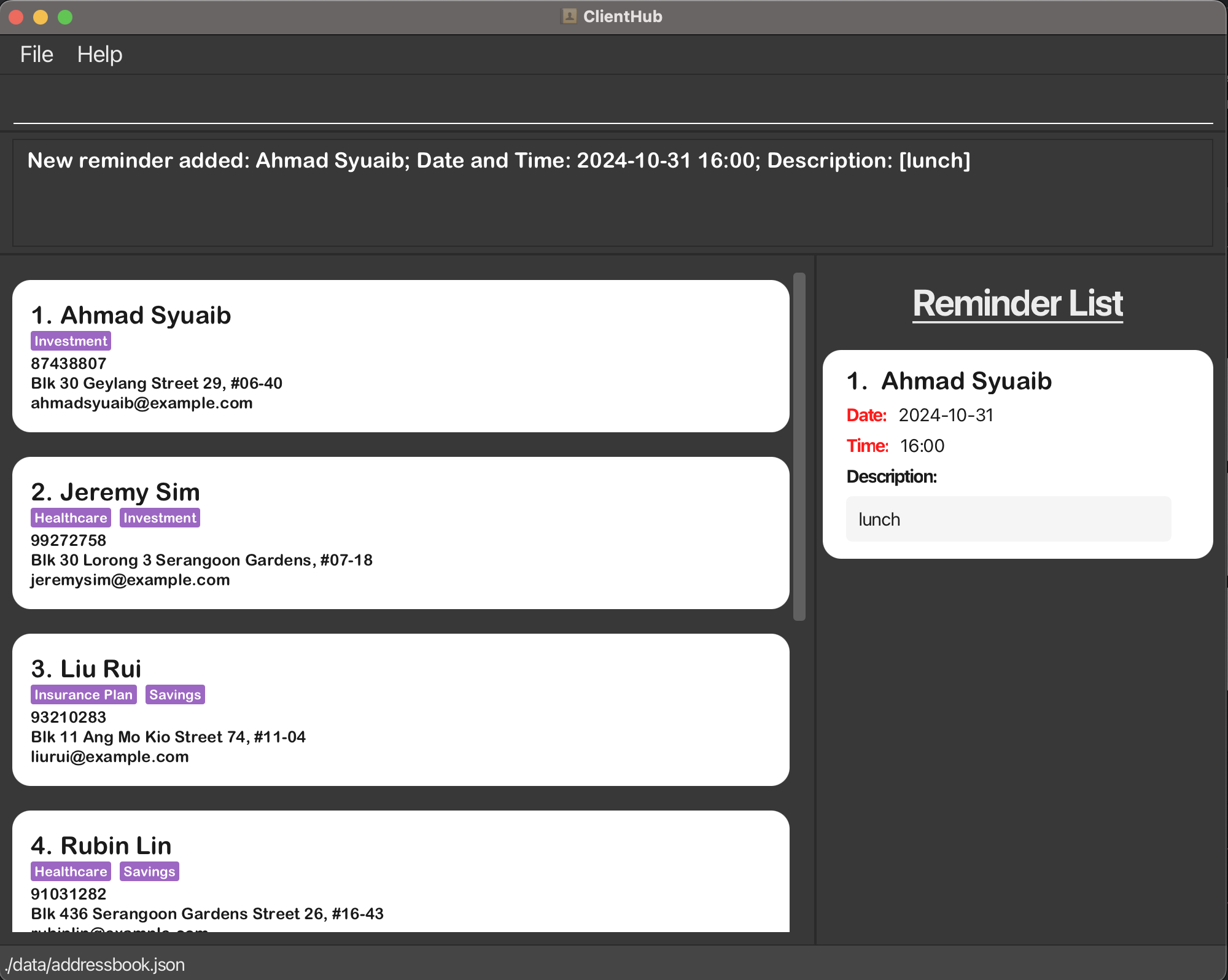
Result for radd n/Ahmad Syuaib dt/2024-10-31 16:00 d/lunch:
Editing a Reminder: redit
Edits an existing reminder in the reminder list.
Format:
redit INDEX [dt/DATETIME] [d/REMINDER_DESCRIPTION] or
re INDEX [dt/DATETIME] [d/REMINDER_DESCRIPTION]
- Edits the reminder at the specified
INDEX. - At least one of the optional fields must be provided.
- At most 1 of each field can be edited at a time.
- Existing values will be updated to the input values.
Examples:
-
redit 1 dt/2022-10-10 12:00 d/Meeting for lunchEdits the date and time and description of the 1st reminder to be2022-10-10 12:00andMeeting for lunchrespectively. -
re 2 dt/2022-10-10 12:00Edits the date and time of the 2nd reminder to be2022-10-10 12:00
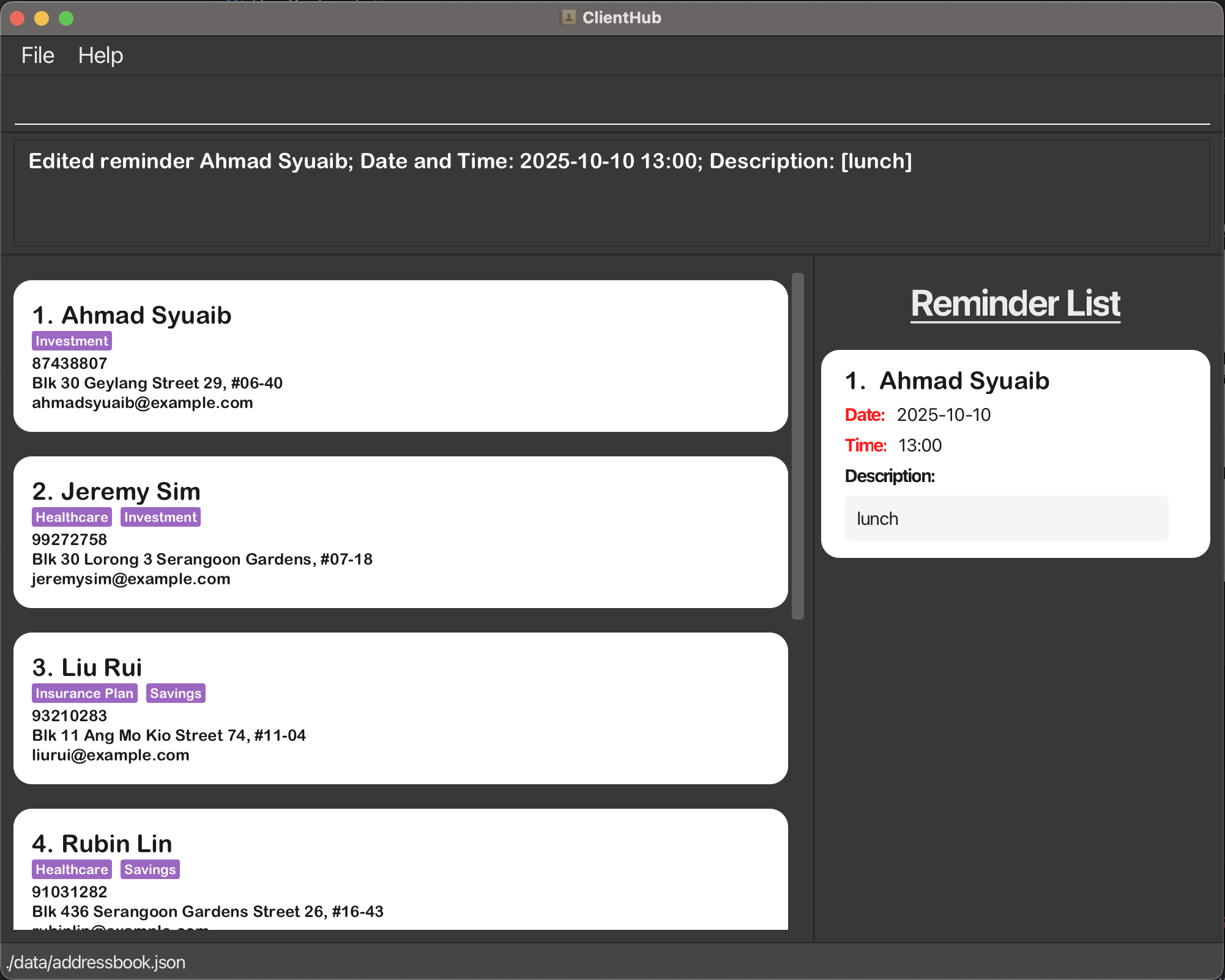
Result for redit 1 dt/2025-10-10 13:00 d/lunch:
Deleting a Reminder: rdelete
Deletes a reminder from the reminder list.
Format:
rdelete INDEX or
rd INDEX
- Deletes the reminder from the reminder list with the specified
INDEX.
Examples:
-
rdelete 1deletes the reminder at index 1 of the reminder list -
rd 2will delete the reminder at index 2 of the reminder list
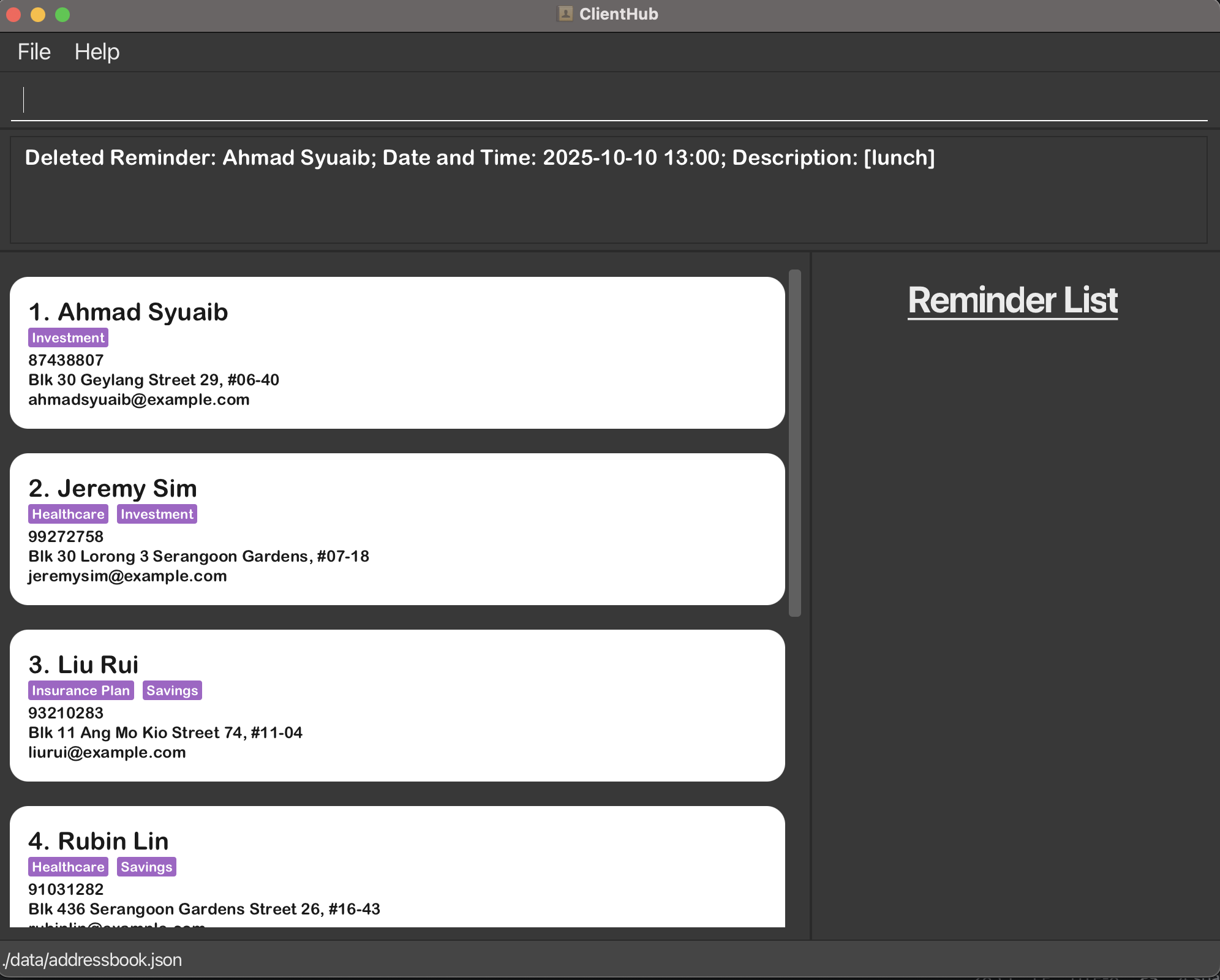
Result for rdelete 1:
Viewing a client: view
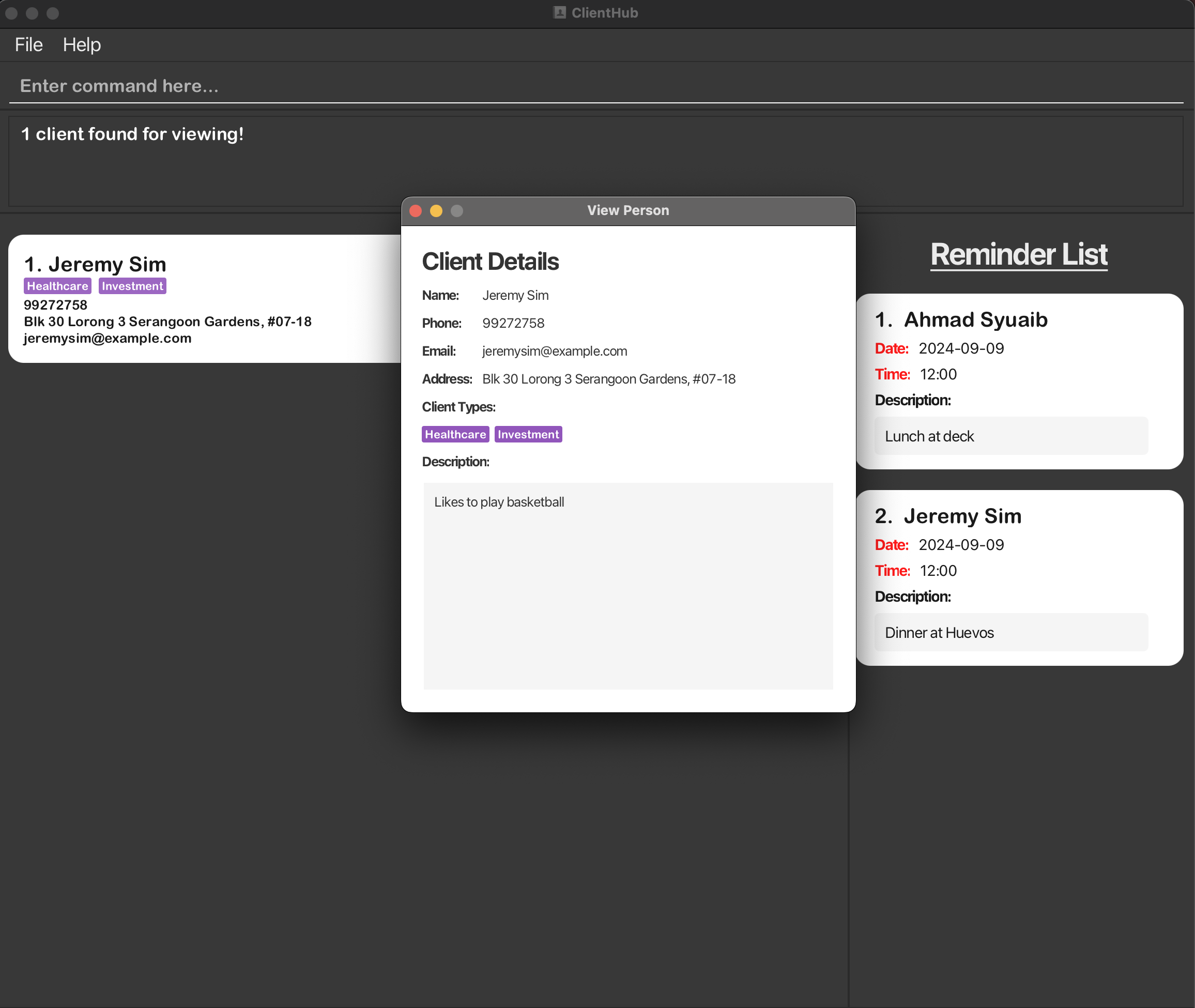
Creates a pop-up view of the specified client from ClientHub containing all the information about the specified client.
- The
NAME,PHONE_NUMBER,EMAIL,ADDRESS,DESCRIPTION, andCLIENT_TYPEs of the client will be displayed. - The
REMINDERtagged to the client will not be displayed in the pop-up view
Format: view NAME or v NAME or view NAME$
- The command does a
findand displays the pop-up view only if the no. of clients found is exactly 1.- If more than 1 name is found,
viewwill throw an error telling user to specify the name further.
- If more than 1 name is found,
- The command is case-insensitive. eg.
alicewill matchAlice - Any characters after the
viewkeyword (and a whitespace) will be considered as theNAMEof the client to be viewed. - Executing another
viewcommand will create a new pop-up view of the specified client. - Duplicate view pop-ups are allowed.
-
$is used to indicate specific name toview
Examples:
-
view John Doeshows the client namedJohn Doe -
view Johnwill throw an error if there isJohn DoeandJohn Doeyin the list of clients -
view n/Johnwill throw an error if there is no one namedn/Johnin the list of clients
Result for view jeremy:
Sorting by name : sort
Sort the current list of clients on Client Hub according to their NAME.
Format: sort or s
- The list of clients is sorted alphabetically by their full names in ascending order, where no duplicate names are allowed.
Examples:
-
sortsorts the list
Listing all persons : list
Shows a list of all persons in the Client Hub.
Format: list or li
Clearing all entries : clear
Clears all entries from ClientHub.
Format: clear
Exiting the program : exit
Exits the program.
Format: exit
Additional Features
Command History Navigation
The command history feature allows users to easily navigate through previously entered commands using the Up and Down arrow keys. This is helpful for quickly accessing past commands without needing to retype them.
- Up Arrow: Moves to the previous command in the history.
- Down Arrow: Moves to the next command in the history.
This feature enables efficient command recall, streamlining the process of repeating or editing previous inputs.
Saving the data
ClientHub data is saved in the hard disk automatically after any command that changes the data. There is no need to save manually.
Editing the data file
ClientHub data is saved automatically as a JSON file [JAR file location]/data/clienthub.json. Advanced users are welcome to update data directly by editing that data file.
 Caution:
If your changes to the data file makes its format invalid, ClientHub will discard all data and start with an empty data file at the next run. Hence, it is recommended to take a backup of the file before editing it.
Caution:
If your changes to the data file makes its format invalid, ClientHub will discard all data and start with an empty data file at the next run. Hence, it is recommended to take a backup of the file before editing it.Furthermore, certain edits can cause the ClientHub to behave in unexpected ways (e.g., if a value entered is outside of the acceptable range). Therefore, edit the data file only if you are confident that you can update it correctly.
Archiving data files [coming in v2.0]
Details coming soon …
FAQ
Q: How do I transfer my data to another Computer?
A: Install the app in the other computer and overwrite the empty data file it creates with the file that contains the data of your previous ClientHub home folder.
Known issues
-
When using multiple screens, if you move the application to a secondary screen, and later switch to using only the primary screen, the GUI will open off-screen. The remedy is to delete the
preferences.jsonfile created by the application before running the application again. -
If you minimize the Help Window and then run the
helpcommand (or use theHelpmenu, or the keyboard shortcutF1) again, the original Help Window will remain minimized, and no new Help Window will appear. The remedy is to manually restore the minimized Help Window. - If you view a client that already has an existing view pop-up, a duplicate view pow-up window will be shown. This is a feature that is allowed in the application. The remedy is to close the duplicate view pop-up window manually.
- If you input more than 300 characters for name, email or address, the view pop-up will not be able to display the full name, email or address. The remedy is to input less than 300 characters for name, email or address.
Command summary
| Action | Format, Examples |
|---|---|
| Help | help |
| Add |
add n/NAME p/PHONE_NUMBER e/EMAIL a/ADDRESS d/DESCRIPTION c/CLIENT_TYPE… or a n/NAME p/PHONE_NUMBER e/EMAIL a/ADDRESS d/DESCRIPTION c/CLIENT_TYPE… e.g add n/James Ho p/22224444 e/jamesho@example.com a/123, Clementi Rd, 1234665 c/Plan A c/Plan A d/crimefighter
|
| Delete |
delete NAME or d NAME or delete NAME$ e.g delete James or d James
|
| Edit |
edit INDEX [n/NAME] [p/PHONE_NUMBER] [e/EMAIL] [a/ADDRESS] [d/DESCRIPTION] [c/CLIENT_TYPE]… e.g edit 2 n/James Lee e/jameslee@example.com
|
| Find Name |
find n/NAME or fn NAME or find n/NAME$ e.g find n/John or fn John
|
| Find Phone Number |
find p/PHONE_NUMBER or fp PHONE_NUMBER or find PHONE_NUMBER$ e.g find p/98765432 or fp 98765432
|
| Find Address |
find a/ADDRESS or fa ADDRESS e.g find a/Blk 30 or fa Blk 30
|
| Find Client Type |
find c/CLIENT_TYPE… or fc CLIENT_TYPE…e.g find c/Investment or fc Investment
|
| Add Reminder |
radd n/NAME dt/DATETIME d/DESCRIPTION or ra n/NAME dt/DATETIME d/DESCRIPTION or radd n/NAME$ dt/DATETIME d/DESCRIPTION e.g radd n/John dt/2024-01-01 12:00 d/Appointment or ra n/John dt/2024-01-01 12:00 d/Appointment
|
| Delete Reminder |
rdelete INDEX or rd INDEX e.g rdelete 1 or rd 2
|
| Edit Reminder |
redit INDEX [dt/DATETIME] [d/DESCRIPTION] or re INDEX [dt/DATETIME] [d/DESCRIPTION] e.g redit 1 dt/2024-02-02 13:00 d/Review or re 1 dt/2024-02-02 13:00
|
| View |
view NAME or v NAME or view NAME$ e.g., view James or v James
|
| Sort |
sort or s
|
| List |
list or li
|
| CLear | clear |
| Exit | exit |